Sync with OneDrive
Paperpile can sync your PDFs and files to OneDrive. This lets you access them on all devices and applications that support OneDrive.
Turn on OneDrive sync
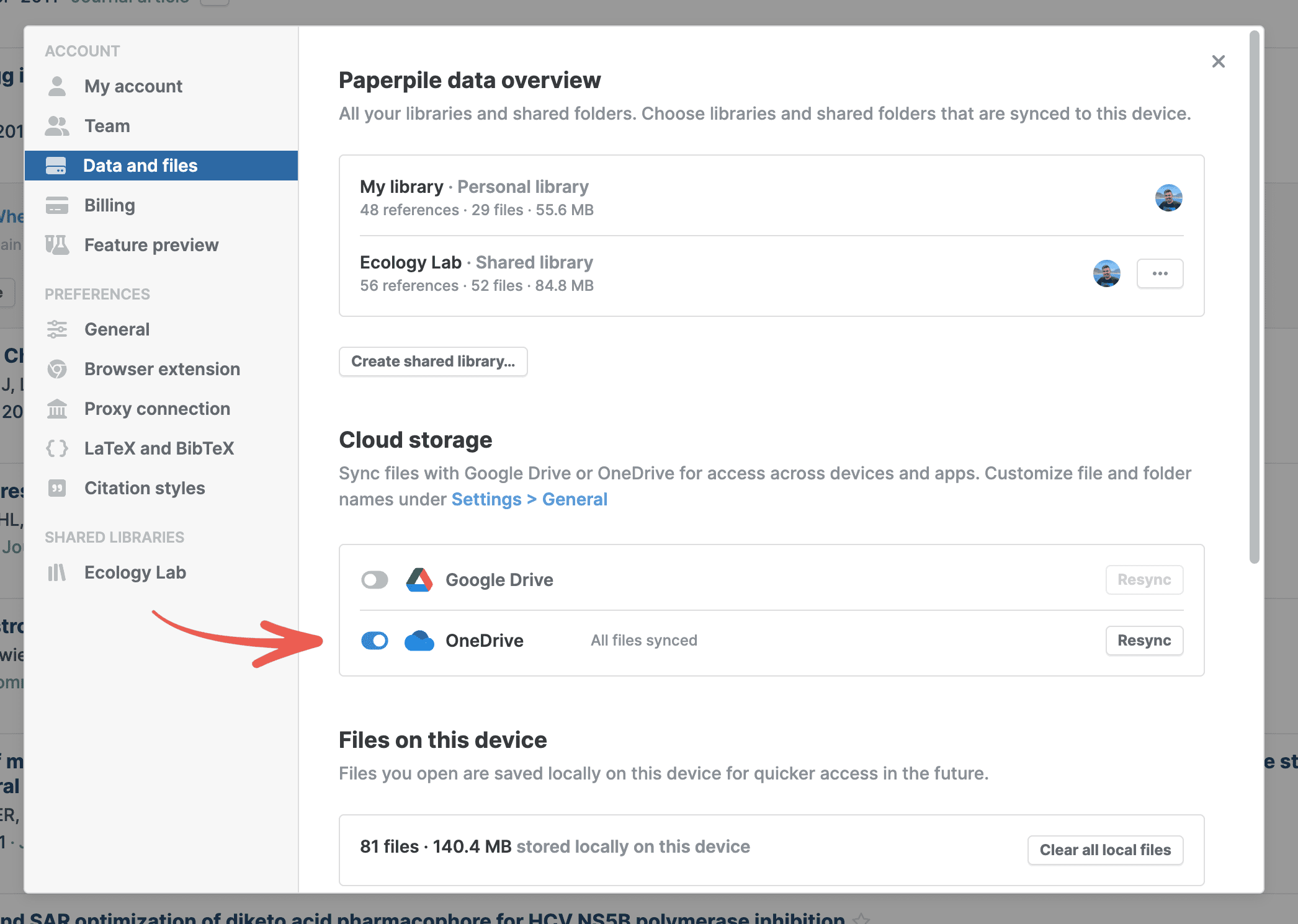
- Click your profile picture in the bottom left of the web app
- Go to Settings > Data and files
- In the Cloud storage section, turn on the switch for OneDrive
- Sign in with your Microsoft account
- In the Microsoft permissions dialog, click Accept to grant access.
Once enabled, Paperpile syncs files automatically in the background.
Access your Paperpile files in OneDrive
Your synced files appear in the Paperpile folder in your OneDrive. You can:
- View files in the OneDrive web interface
- Access files through the OneDrive desktop app
- Open files in OneDrive mobile apps
The files in OneDrive always reflect your current Paperpile library. To change file organization in OneDrive, see File organization in OneDrive.
How file syncing in OneDrive works
Automatic syncing
Once enabled, Paperpile syncs all your PDFs and supplementary files to OneDrive automatically. You don't need to manually upload or manage files.
What syncs:
- PDFs attached to references
- Supplementary files
- File updates and deletions
- Annotations made on PDFs
Make changes in Paperpile, not OneDrive
Always delete or rename files in Paperpile, not directly in OneDrive. This ensures your library and OneDrive stay in sync. Paperpile will attempt to fix inconsistencies, but making changes in Paperpile is the safest approach.
Check OneDrive sync status
To view the OneDrive sync status:
Click the profile menu in the bottom left of the web app
or
Go to Settings > Data and files > Cloud storage
Check sync status of individual files
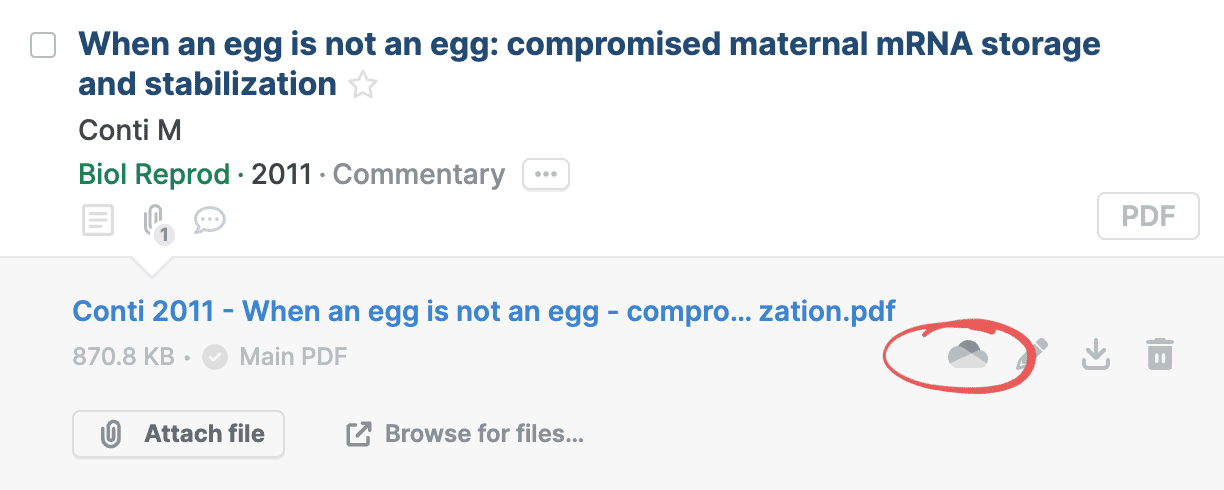
To see if a file is synced to OneDrive:
- Click the paperclip on any reference to open its files panel
- Look for the OneDrive button next to each file
The OneDrive button in the files panel shows the sync status:
Dark gray cloud: File is synced to OneDrive
Light gray cloud: Syncing in progress
If no cloud shows, the file is not synced to OneDrive.
File organization in OneDrive
By default, Paperpile organizes files in OneDrive as follows:
- Folder structure: Files are arranged in folders by the first letter of the first author's last name (for example, files by Smith and Jones go in the S folder)
- File names:
- Main PDFs: Named "Author year - Title" (for example, "Crow and Kimura 1970 - An introduction to population genetics theory.pdf")
- Supplementary files: Keep their original filename with "Author year" prefix (for example, "Crow and Kimura 1970 - supplementary_data.xlsx")
Change file and folder names pattern
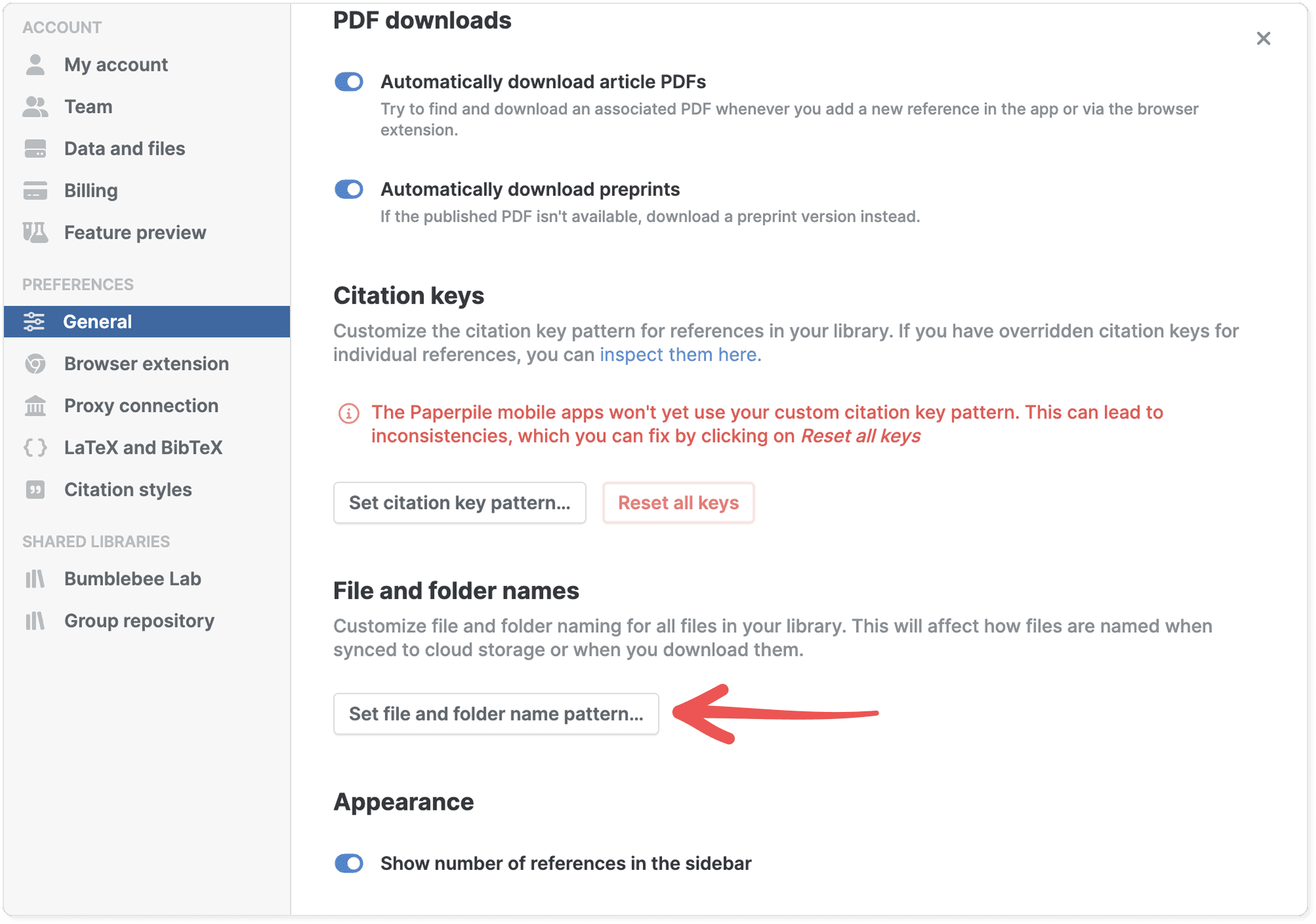
To customize how files are named and organized:
1. Go to Settings > General
2. In the File and folder names section, click Set file and folder name pattern.
3. Choose your preferred naming pattern
See Customize file and folder names for more details about file patterns.
Turn off OneDrive sync
If you no longer want to sync your Paperpile library with OneDrive, you can turn off OneDrive sync:
- Go to Settings > Data and files
- In the Cloud storage section, turn off the switch for OneDrive
What happens to your files:
When you turn off sync, your files remain in OneDrive. They won't be deleted. However:
- New files added to Paperpile won't sync to OneDrive
- Changes to existing files in Paperpile won't update in OneDrive
- Files deleted from Paperpile won't be deleted from OneDrive
To remove files from OneDrive completely, delete them manually from your OneDrive folder after turning off sync.
Troubleshooting
Authentication issue
If you see the OneDrive button next to your profile picture in the bottom left of the web app, there's an authentication problem. Click the button and follow the instructions to re-authenticate with OneDrive.
Sync has been disabled due to errors
If sync fails repeatedly, Paperpile disables it automatically. This can happen if Microsoft's servers are temporarily overloaded. To fix:
1. Wait a few minutes
2. Go to Settings > Data and files
3. In the Cloud storage section, click Resync next to OneDrive Paperpile will attempt to sync again.
OneDrive storage is full
If you see "Your OneDrive storage is full. Free up space to continue syncing," your OneDrive storage is full. To fix:
1. Free up space in OneDrive by deleting old files
2. Go to Settings > Data and files
3. In the Cloud storage section, click Resync next to OneDrive
Your institution blocks OneDrive access
If your organization doesn't allow third-party apps to access OneDrive, contact your IT administrator. They'll need to enable the Paperpile app in your Microsoft or SharePoint account.
Common questions
Can I change where files are stored in OneDrive?
No. Files are always stored in the Paperpile folder in your OneDrive root directory. However, you can customize the folder structure and file naming within that folder.
What happens if I delete a file in OneDrive?
Paperpile will detect the deletion and re-upload the file to OneDrive during the next sync. To permanently delete a file, delete it in Paperpile.
Can I sync to both Google Drive and OneDrive?
Yes. You can sync to both cloud storage services in Settings > Data and files. For more details about syncing to Google Drive, see Sync with Google Drive.
Will syncing use a lot of bandwidth?
Initial sync uploads all your files, which may take time depending on your library size. After that, only new or changed files are synced.